
Manual jobs
Overview of Manual job settings, which define the procedure that will be performed by a user.
From the Manual jobs table (Figure 1), you can see the
most important information about existing manual jobs. From here you can also create a
new manual job, as well as update, or delete an existing one. Manual jobs can be grouped
under custom categories. A new group can be created by clicking on the plus button
( ) next to
the All tab. More on group management can be found here.
) next to
the All tab. More on group management can be found here.
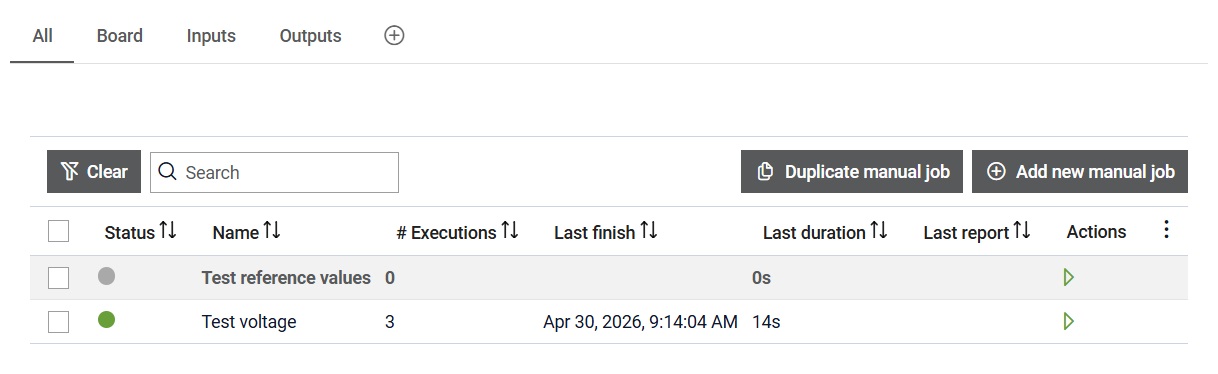
The manual jobs table shows the following information:
- Status: Status of the last ran execution. When created, Manual job has a status Idle, until the first execution is started. All possible states for the execution can be found here.
- Name
- Executions: Number of executions made of the Manual job
- Last finish: The time when the last execution of the Manual job was completed
- Last duration: Duration of last execution
- Last report: Status of last uploaded report
Additionally, you can start a Manual job directly from this table.
The manual jobs table allows selected items inside it. When at least one item is selected, buttons will appear above it that allow certain actions.
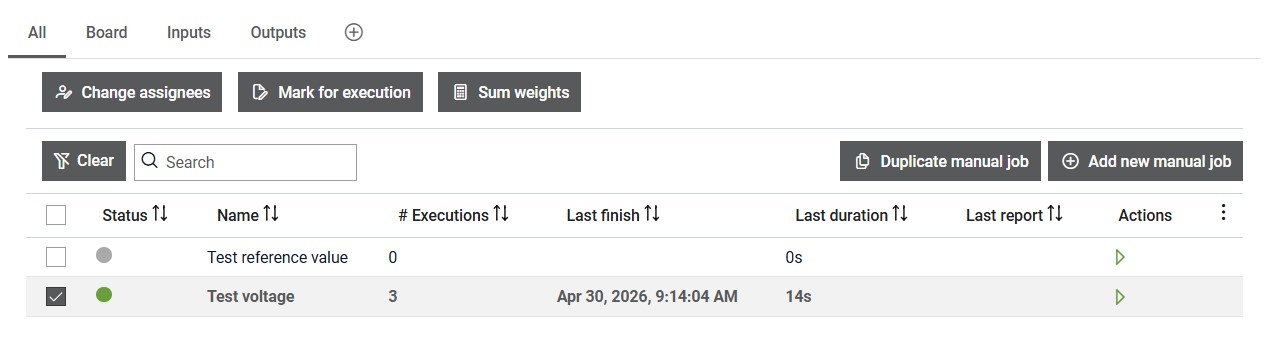
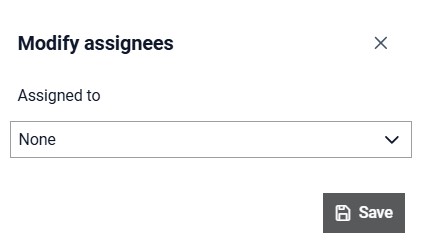
By clicking button  , dialog will appear that allows changing assignees for the selected Manual jobs.
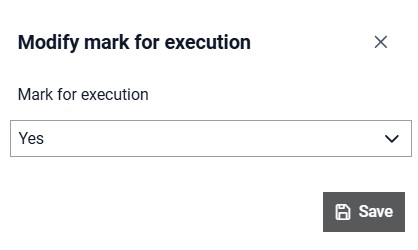
By clicking button  , dialog will appear that allows changing mark for execution for the selected Manual jobs.
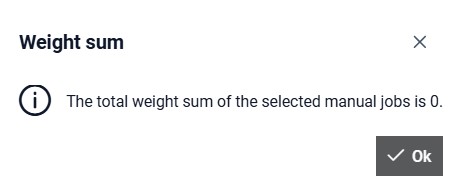
By clicking button  , dialog will appear that shows sum of weights for the selected Manual jobs.
 and which are used for
organization purposes, can be updated or deleted by selecting the appropriate option
from the menu that appears when the user clicks on the three dots in the focused tab
(the All tab cannot be modified or deleted). Additionally, tabs can be reordered by
choosing the approproate option from the same menu.
and which are used for
organization purposes, can be updated or deleted by selecting the appropriate option
from the menu that appears when the user clicks on the three dots in the focused tab
(the All tab cannot be modified or deleted). Additionally, tabs can be reordered by
choosing the approproate option from the same menu. 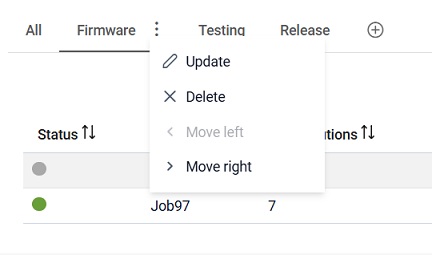
 button, columns of the table
can be customized - hidden or shown depending on the preference. Columns of the table
can be reordered by using drag and drop in the table header. When positioning cursor in
between two columns, cursor for column resizing will show and enable change of the
column's width. All changes made to the table will be automatically preserved.
button, columns of the table
can be customized - hidden or shown depending on the preference. Columns of the table
can be reordered by using drag and drop in the table header. When positioning cursor in
between two columns, cursor for column resizing will show and enable change of the
column's width. All changes made to the table will be automatically preserved.  button,
the Search input field is cleared and filtering is cancelled.
button,
the Search input field is cleared and filtering is cancelled. Manual job details
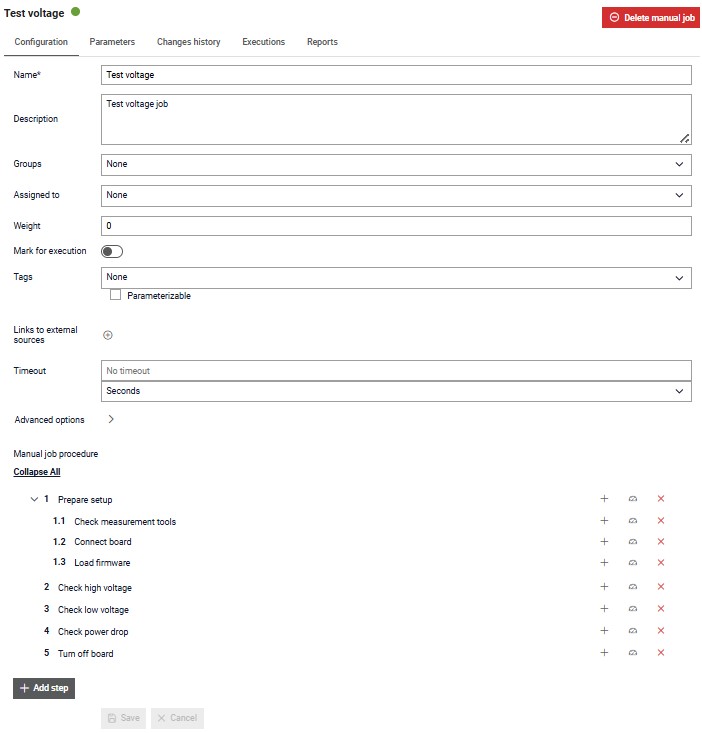
In the Details section, you can find:
- Configuration tab: Here are displayed configuration data.
- Parameters tab: Same as in job parameters, this tab is for managing parameters in order to easily change how a Manual job should behave.
- Changes history tab: Contains Manual job's history of changes.
- Executions tab: Contains a table of executions that are made by running this manual job.
- Reports tab: Contains generated reports by running this manual job.
You can also delete a manual job by clicking on the Delete manual job button.
Configuration tab
The tab displays configuration details for the selected Manual job and allows for updates. Within the configuration tags can be marked as parametrizable. If a field is made parametrizable, the Manual job will have that field available as a parameter when running a manual job, within the run dialog. The default value of the parametrized field will be set to the value specified in the manual job configuration, but the user can change it when running the Manual job.
A timeout can also be defined as a time limit that specifies how long an execution can run before it is automatically interrupted.
Changes history tab
Changes history for the selected Manual job is visible from this tab (Figure 8).
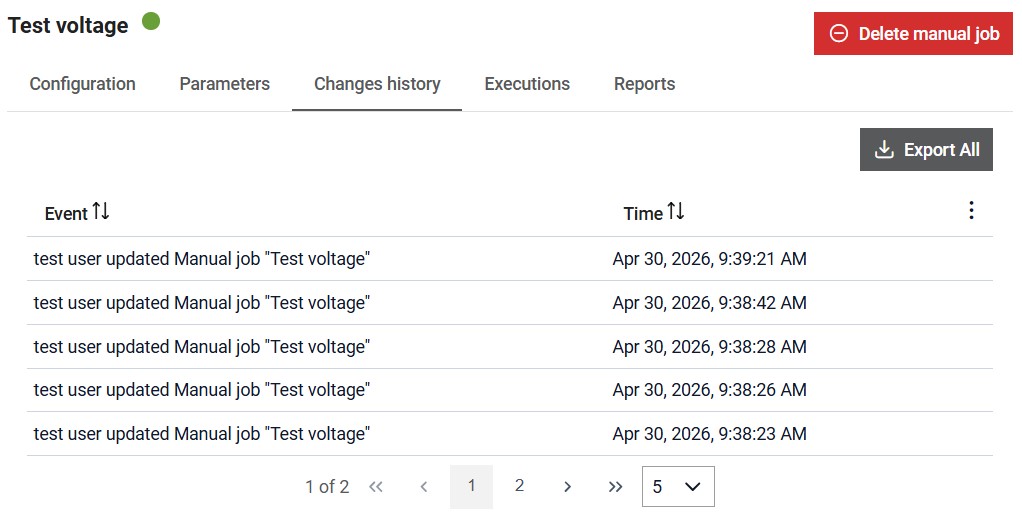
All snapshots (events) will be exported to JSON format and automatically downloaded
by clicking on the  button.
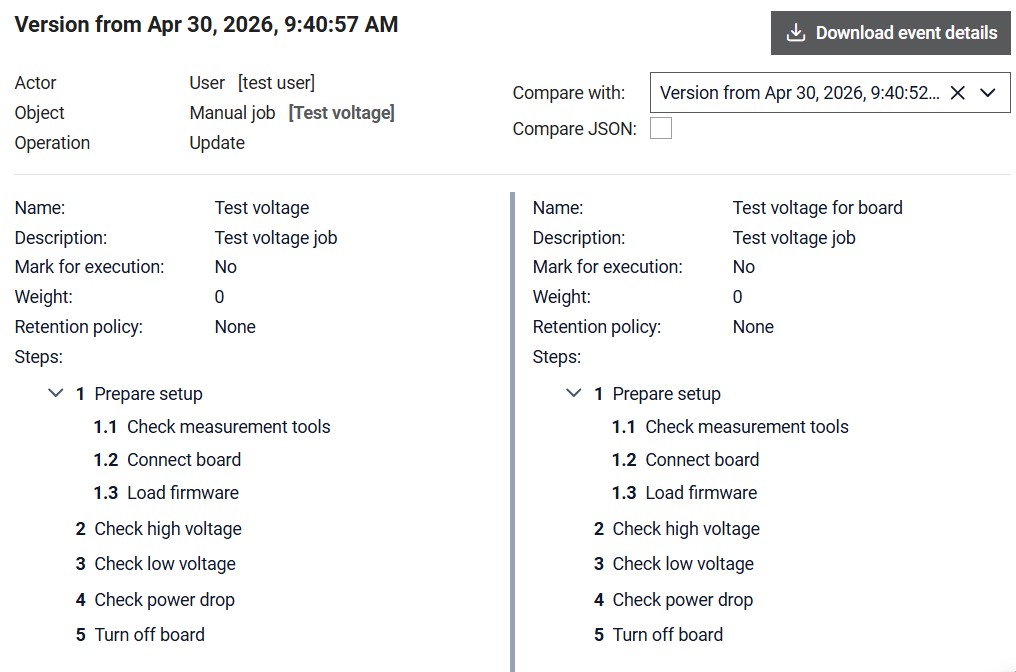
By selecting each line in the table, single snapshot will be shown enabling preview of the made changes
and allowing user to perform comparison between the selected snapshot and and any chosen snapshot.
button.
By selecting each line in the table, single snapshot will be shown enabling preview of the made changes
and allowing user to perform comparison between the selected snapshot and and any chosen snapshot.
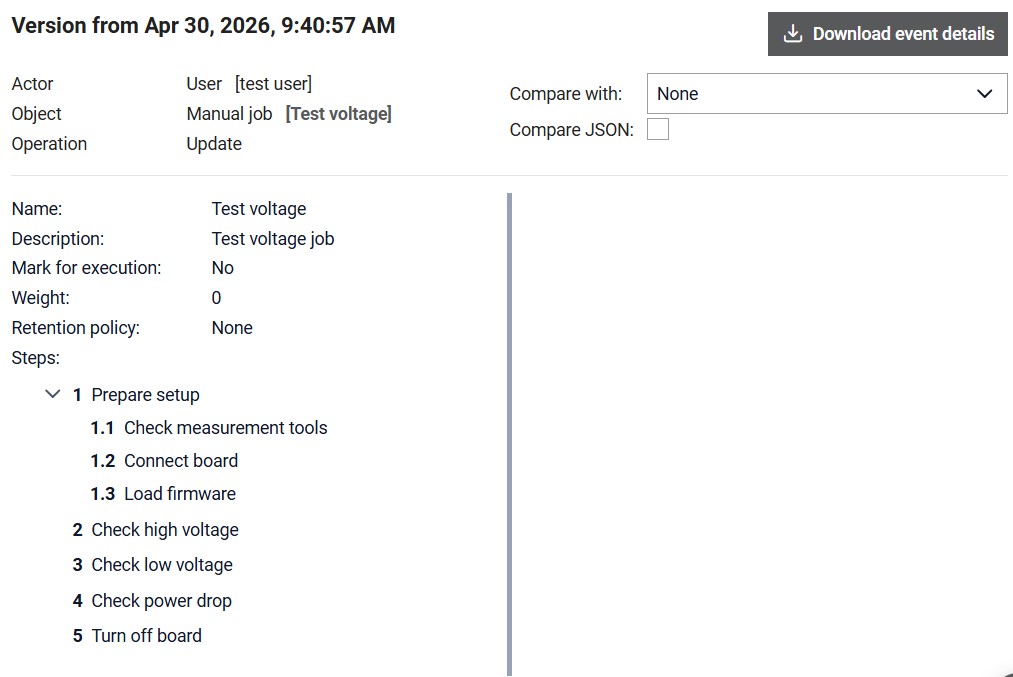
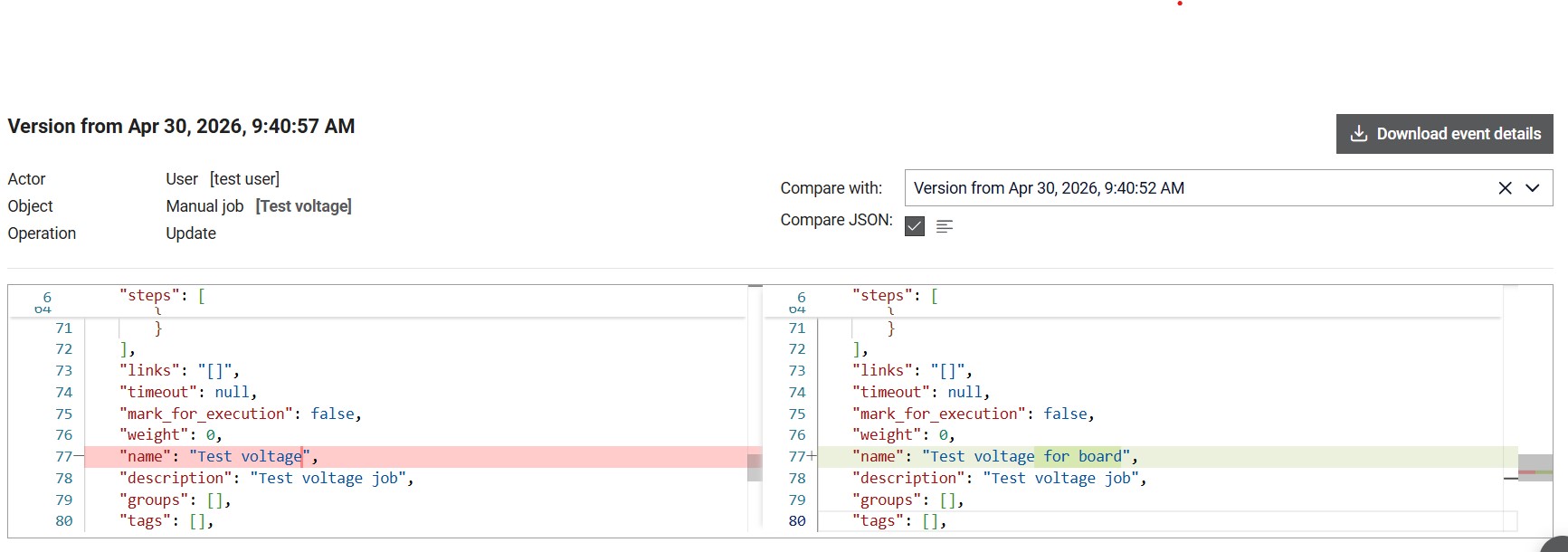
Single snapshot (event) can be exported as JSON and downloaded by clicking on the
 button. Snapshots can be compared through UI or as JSON, with JSON option having
more clearly displayed differences between the two snapshots using Monaco
editor.
button. Snapshots can be compared through UI or as JSON, with JSON option having
more clearly displayed differences between the two snapshots using Monaco
editor.
Deleting manual job
Clicking on the Delete manual job opens a confirm dialog.
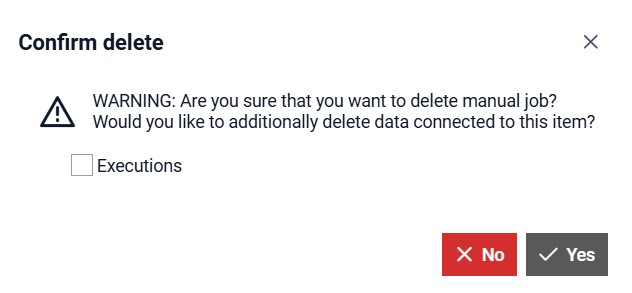
If the Executions box is checked, then all executions made by this Manual job will be deleted (pipline execution and all nested job executions). When this option is clicked additional information in the dialog will be available.
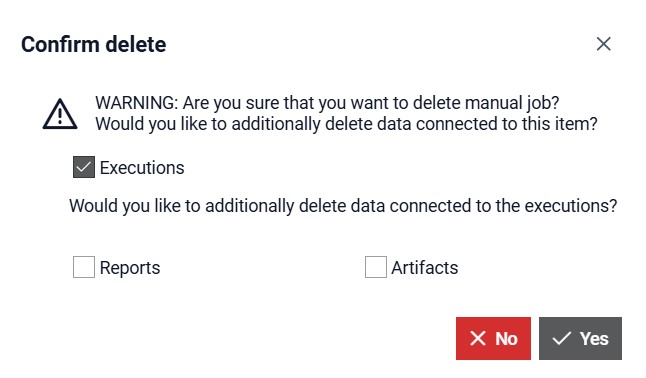
If the Reports box is checked, then all Reports generated by this Manual job will be deleted.
Create manual job
A new manual job can be added by clicking on the button. This opens the dialog window shown in Figure 14.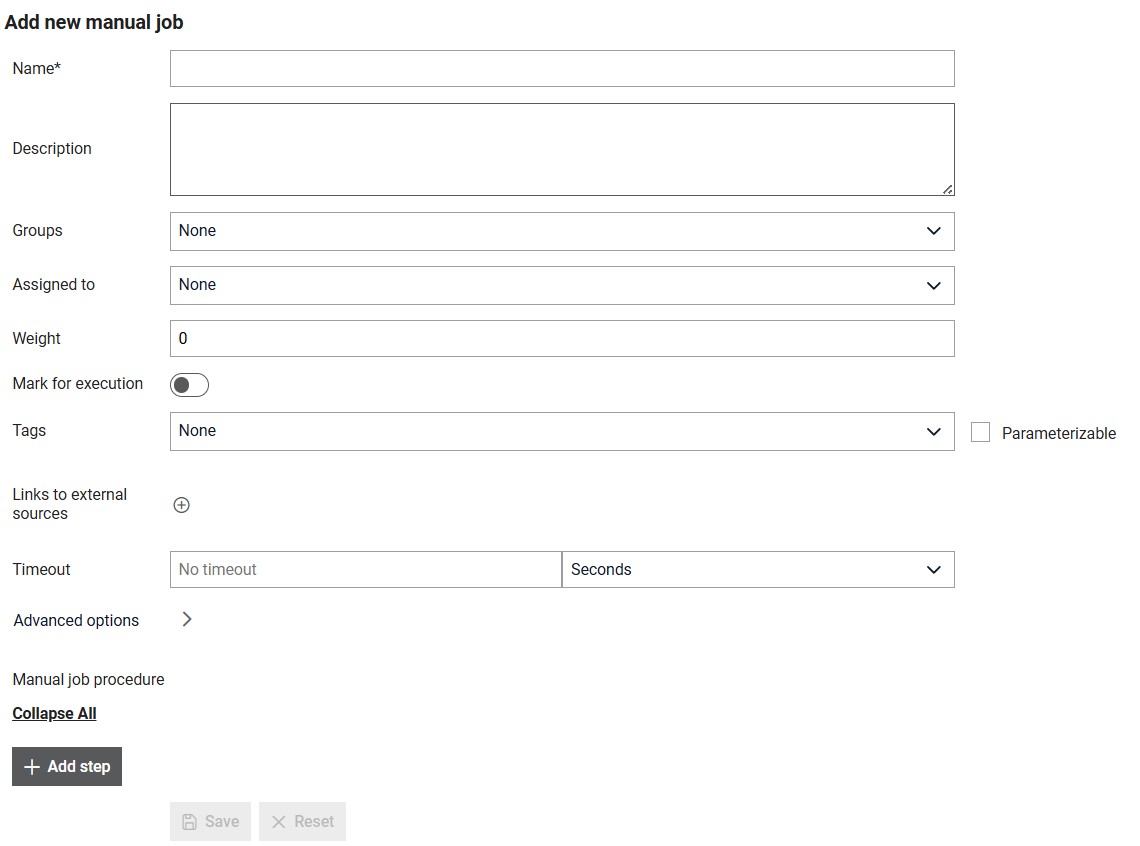
From this dialog, several options for defining the Manual job are available:
- Give a name which will be used to refer to it throughout the Typhoon Test Hub. The name must be unique.
- Write a description of the Manual job.
- Select the groups of categories where this Manual job should be displayed.
- Select one or more Users to which this Manual job is assigned.
- Define the weight of the Manual job.
- Mark that the Manual job should be executed.
- Select one or more Tags which will be used to tag executions of the Manual job. Tags field can be parametrizable. In that case tags will be available as parameter when running selected Manual job.
- Add one or more link to the external source that is connected or corresponds to this Manual job. For each link you need to define source type and value.
- Add one or more Steps to je Manual job procedure.
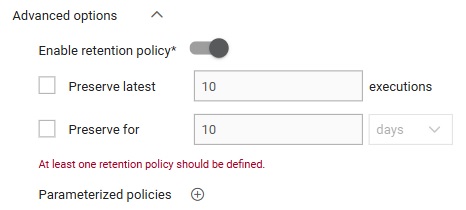
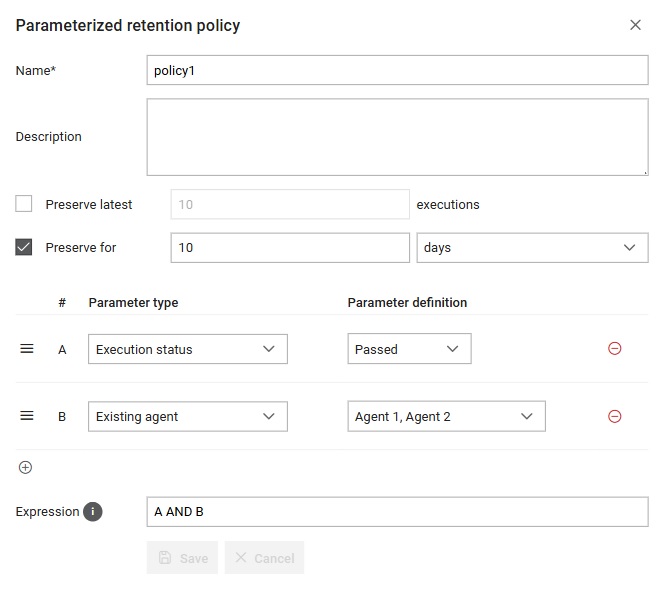
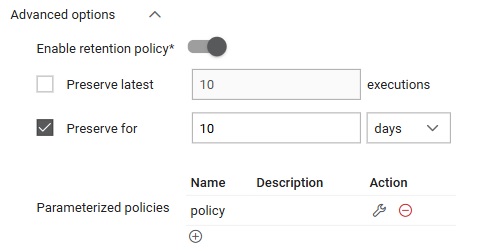
- Preserve latest - where number of executions that would be preserved needs to be entered.
- Preserve for - where period needs to be entered (number and unit, where unit can be days/weeks/months/years) for which executions needs to be preserved.
Manual job procedure
Manual job procedure consists of one or more steps. By clicking the button  you can
add a step to the procedure. Each step can have one or more nested steps (substeps).
Nested step can be added by clicking the button
you can
add a step to the procedure. Each step can have one or more nested steps (substeps).
Nested step can be added by clicking the button  . A
step can be removed by clicking the button
. A
step can be removed by clicking the button  .
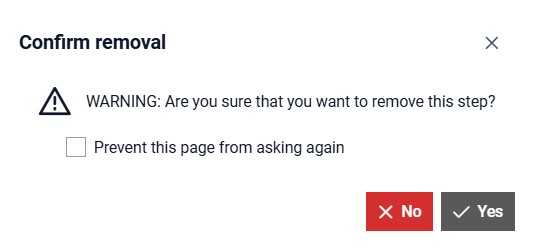
When this button is clicked, a confirmation dialog will appear which also has
option to prevent from later repeated confirmations.
.
When this button is clicked, a confirmation dialog will appear which also has
option to prevent from later repeated confirmations.
By clicking on the button  you can add a measurement to the step. A dialog will appear to define a measurement. By clicking the same button
you can modify the measurement. A measurement can be removed by clicking the button
. When this button is clicked, a confirmation dialog will appear which also has
option to prevent from later repeated confirmations. Measurement contains any value
that is recorded during the manual job step.
you can add a measurement to the step. A dialog will appear to define a measurement. By clicking the same button
you can modify the measurement. A measurement can be removed by clicking the button
. When this button is clicked, a confirmation dialog will appear which also has
option to prevent from later repeated confirmations. Measurement contains any value
that is recorded during the manual job step.
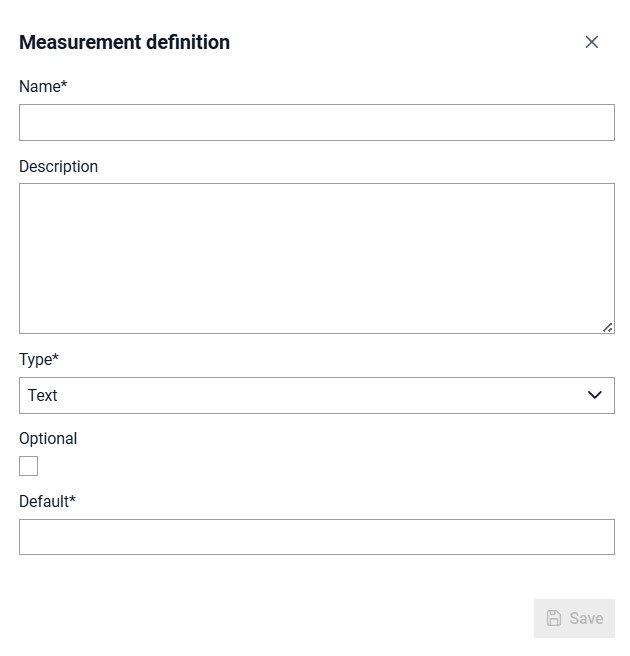
For this dialog, several options for defining a measurement are available:
- Give a name of the measurement.
- Write a description of the measurement.
- Choose one of the following types for the measurement: text, number, choice (boolean), single choice and multiple choice.
- Choose if measurement value is optional.
- Define a default value for the measurement.
Start manual job
When a manual job has no parameters, like Test voltage in Figure 1, clicking on the Start button will cause a
new execution to be made, which will be visible in the corresponding table
on the Executions page. If the job has parameters,
then the action button in the table will appear like this:  . Starting a
Manual job with a parameter works the same way as starting a Job with a parameter.
An example can be found here.
. Starting a
Manual job with a parameter works the same way as starting a Job with a parameter.
An example can be found here.