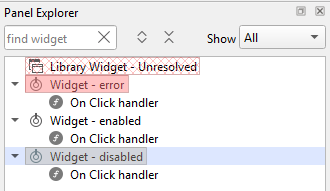
Panel Explorer shows the hierarchical organization of widgets in the
currently selected Panel (Figure 1), shows all of the active
widget's handlers, and marks any widget state (disabled, not resolved, has an error...) with
the appropriate background color (Figure 2). It allows you to
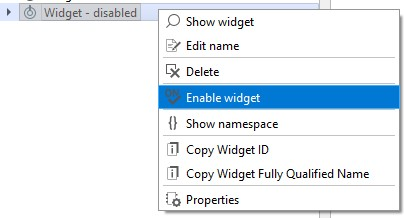
quickly search and navigate to the desired widget, change its name, delete the widget, change
its properties or filter widgets by their states. All actions are available from the right
click context menu (Figure 3).Figure 1. Panel Explorer dock
Figure 2. Widget states in Panel Explorer
Figure 3. Panel Explorer right click actions
Note: Each Panel has its own Panel Explorer. When you switch to another Panel, its Panel
Explorer will be shown.
Note: After you double-click the Panel Explorer item, the corresponding widget will be found,
selected and its namespace will be shown in Namespace Explorer.
Note: After you double-click on the active widget's handler, the handler's code will
be shown in the widget's Properties dialog.
Note: You can read more about widget errors in the Capture/Scope Widget section of this document.